hostnamectl
tr '\0' '\n' < /proc/device-tree/model
tr '\0' '\n' < /proc/device-tree/compatible
uname -a
lscpu
free -h
lsblk -o NAME,MAJ:MIN,RM,SIZE,RO,TYPE,FSTYPE,MOUNTPOINTS
findmnt -no SOURCE,FSTYPE,SIZE,USED,AVAIL,USE%,TARGET /¶ Introduction
Banana Pi BPI-CM7 is an Allwinner H618 compute module designed for use with the BPI-CM7IO carrier board.
| More Infomation: Banana Pi BPI-CM7 Main Page |
¶ Specifications
-
Allwinner H618, Quad-core ARM Cortex™-A53 processor, up to 1.5 GHz
-
ARM Mali G31 GPU
-
Onboard LPDDR4 memory
-
Onboard eMMC storage
-
K019-CW43-Dw Wi-Fi 5 and Bluetooth 5.0 module
-
1x USB 2.0 OTG
-
3x USB 2.0 Host
-
1x HDMI output
-
1x 10/100M Ethernet
-
1x microSD interface
-
2x 100-pin board-to-board connectors
¶ Andriod
¶ Prepare
-
Download latest Android image.
-
Download and Install Allwinner Image Download Tools, PhoenixSuit is for window.
-
Type-C cable, 5V power supply.
¶ Install Image with USB tool
¶ Linux development
¶ Prepare
Use the following commands to confirm the board model, operating system, CPU, memory, and boot storage.
Test result:
-
Board: Banana Pi BPI-CM7 with BPI-CM7IO
-
OS: Armbian 24.11.1 jammy / Ubuntu 22.04.5 LTS
-
Kernel: Linux 5.4.125-legacy-sunxi64
-
Architecture: arm64
-
CPU: 4 x Cortex-A53, up to 1512 MHz
-
Memory: 1.9 GiB available to Linux
-
Boot device: microSD,
/dev/mmcblk1p1 -
eMMC:
/dev/mmcblk0, 29.3 GiB -
Login user used for the test:
pi
¶ Install Image to SDcard
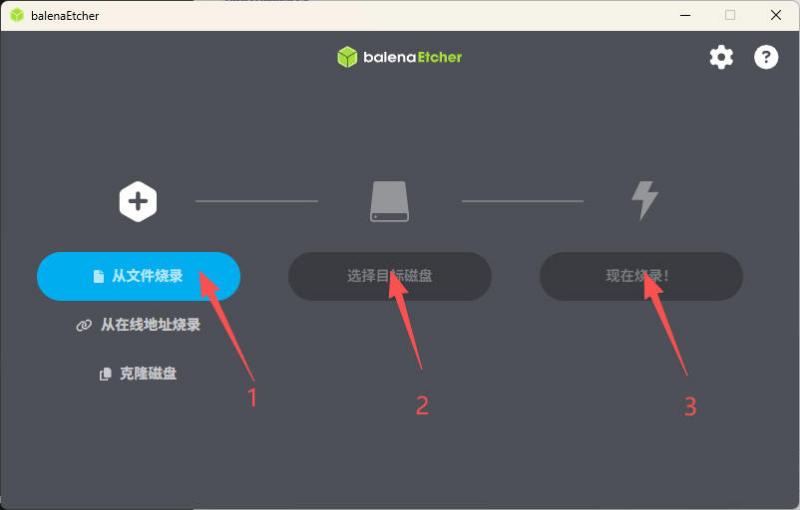
Balena Etcher is an opensource GUI flash tool by Balena, Flash OS images to SDcard or USB drive.
-
Click on "Flash from file" to select image.
-
Click on "Select target" to select USB device.
-
Click on "Flash!" Start burning.
¶ Install the image to eMMC
-
Power on and boot using SD card.
-
Copy the Linux image to be burned to the USB drive.
-
Connect the USB flash drive to the USB port and mount it using the mount command.
root@bpi-cm7:~# mount /dev/sda1 /mnt root@bpi-cm7:~# lsblk NAME MAJ:MIN RM SIZE RO TYPE MOUNTPOINTS sda 8:0 1 59.5G 0 disk └─sda1 8:1 1 59.5G 0 part /mnt mmcblk0 179:0 0 29.3G 0 disk mmcblk0boot0 179:16 0 4M 1 disk mmcblk0boot1 179:32 0 4M 1 disk mmcblk1 179:48 0 59.5G 0 disk └─mmcblk1p1 179:49 0 58.9G 0 part /var/log.hdd / zram0 254:0 0 982.5M 0 disk [SWAP] zram1 254:1 0 50M 0 disk /var/log -
Use the cd tool to navigate to the storage image directory of the USB drive.Use the dd command to burn it into the EMMC.
root@bpi-cm7:/mnt# dd if=“image.name” of=/dev/mmcblk0 17547264+0 records in 17547264+0 records out 8984199168 bytes (9.0 GB, 8.4 GiB) copied, 427.645 s, 21.0 MB/s -
Then power off, remove the SD card, and you can boot using eMMC.
¶ Erase eMMC
¶ Desktop
Use the following commands to check whether the system boots to the graphical target and whether the display manager is running.
systemctl get-default
systemctl is-active display-manager
loginctl list-sessionsTest result:
graphical.target
active¶ Debug UART
¶ SSH
-
Prepare a network cable and a router.
-
Connect the BPI-CM7IO Ethernet port and the PC to the same LAN.
-
Check the board IP address from the router management page, or run the following command from a local terminal on the board.
ip -brief address show eth0 hostname -I -
Check the SSH service status on the board.
systemctl is-active ssh -
Open a terminal on the PC and connect to the board. Replace
<board-ip>with the actual address assigned by the router.ssh pi@<board-ip> -
After login, use the following commands to confirm the remote user, board name, and kernel.
whoami
hostnamectl --static
uname -r
Test result:
SSH service: active
Remote login: successful
User: pi
Hostname: bpi-cm7
Kernel: 5.4.125-legacy-sunxi64¶ NoMachine Remote Desktop
¶ armbian-config
Check whether armbian-config is installed.
command -v armbian-configEnter the Armbian configuration utility with the following command.
sudo armbian-configTest result:
/usr/bin/armbian-config¶ WiFi
Use the nmcli command to list network devices and scan Wi-Fi access points.
nmcli device # List devices
nmcli device wifi list # List available Wi-Fi access points
rfkill list # Check whether Wi-Fi is blockedUse the following commands to connect, disconnect, or create a Wi-Fi hotspot.
nmcli device wifi connect [SSID] password [PASSWORD]
nmcli connection up [SSID]
nmcli device disconnect [device name]

nmcli device wifi hotspot con-name [NAME] ifname [device name] ssid [SSID] password [PASSWORD]

nmcli connection show
nmcli connection down [NAME]
nmcli connection up [NAME]
nmcli connection delete [SSID]

nmcli radio wifi off
nmcli radio wifi onTest result:
Interface: wlan0
rfkill soft blocked: no
rfkill hard blocked: no
Wi-Fi scan: successful¶ Set static IP, DNS
¶ Network time synchronization
Chrony is used in the tested image for network time synchronization.
Use the following commands to check the system clock, synchronization status, Chrony service, and time sources.
timedatectl status
systemctl status chrony
chronyc tracking
chronyc sources -v
dateUse the following commands to manage the Chrony service.
sudo systemctl start chrony
sudo systemctl enable chrony
sudo systemctl restart chronyUse the following commands to list or change the time zone.
timedatectl list-timezones
sudo timedatectl set-timezone Asia/ShanghaiTest result:
System clock synchronized: yes
NTP service: active
Chrony service: active
Time zone during test: Etc/UTC¶ View hardware temperature
Use the following commands to identify the four thermal zones.
cat /sys/class/thermal/thermal_zone0/type
cat /sys/class/thermal/thermal_zone1/type
cat /sys/class/thermal/thermal_zone2/type
cat /sys/class/thermal/thermal_zone3/typeUse the following commands to read the temperatures.
cat /sys/class/thermal/thermal_zone0/temp
cat /sys/class/thermal/thermal_zone1/temp
cat /sys/class/thermal/thermal_zone2/temp
cat /sys/class/thermal/thermal_zone3/tempDivide each returned value by 1000 to obtain the temperature in degrees Celsius.
Test result:
cpu_thermal_zone: 50.2 °C
ddr_thermal_zone: 51.4 °C
gpu_thermal_zone: 53.4 °C
ve_thermal_zone: 50.8 °C¶ Use USB disk
¶ Use Audio Devices
¶ HDMI audio
¶ 3.5mm audio jack
¶ Terminal command to play audio files
Use the following command to list the audio playback devices.
aplay -l # List playback devicesTest result:
**** List of PLAYBACK Hardware Devices ****
card 0: audiocodec [audiocodec], device 0: soc@3000000:codec_plat-5096000.codec 5096000.codec-0 []
  Subdevices: 1/1
  Subdevice #0: subdevice #0
card 1: ahubhdmi [ahubhdmi], device 0: ahub_plat-snd-soc-dummy-dai snd-soc-dummy-dai-0 []
  Subdevices: 1/1
Subdevice #0: subdevice #0¶ Play through the 3.5mm audio jack
¶ Audio playback via HDMI
¶ Use Bluetooth
¶ Use IR Receiver
¶ Transfer files
¶ scp
SCP uses the SSH protocol to copy files securely between the PC and BPI-CM7. Make sure the PC and board are connected to the same LAN and that SSH login works first.
The SCP command format is:
scp [options] file_source file_targetUse -r to copy a directory recursively.
Copy a local file from the PC to BPI-CM7:
scp local-file pi@<board-ip>:/home/pi/Copy a file from BPI-CM7 to the PC:
scp pi@<board-ip>:/home/pi/remote-file ./Test result:
Upload to /tmp: successful
Remote file size and SHA-256 verification: successful
Temporary test file removal: successful¶ mobaxterm
¶ nano - text editor
GNU nano is a command-line text editor and is installed in the tested image.
-
Open a file with
nano [file path]. -
Edit the file.
-
Press
Ctrl+Oto write the file. -
Edit or confirm the file path, then press
Enter. -
Press
Ctrl+Xto exit nano.
Test result:
/usr/bin/nano