hexdump -C /sys/bus/i2c/devices/1-0057/eeprom | head -n 2¶ Introduction
BPI-RT2 Router use Realtek RTL8198D design. It is a high performance wireless router for small and micro businesses, homes and other networking environments.
BPI-RT2 Router dual-band wireless router, 2.4G 2T2R, 5G 2T2R coexist at the same time. The use of four omni-directional high-gain antennas, with strong signal penetration and wider coverage, which makes the already strong signal more powerful, data transmission is also smoother. MU-MIMO multi-device transceiver technology has low latency and multiple devices are stably connected simultaneously, thus ensuring a good experience for multiple devices.
¶ Development
¶ Prepare
-
12V/2A power adapter
-
Serial cable
¶ Reading and writing EEPROM
2、Write content to EEPROM
echo "HelloPuya" > /sys/bus/i2c/devices/1-0057/eeprom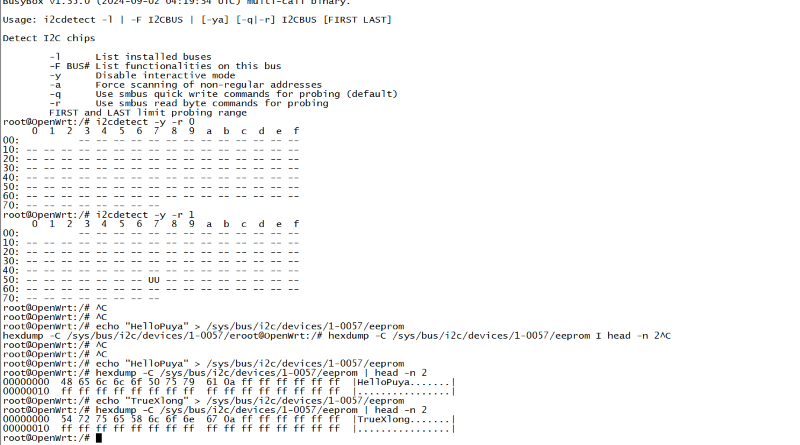
¶ USB
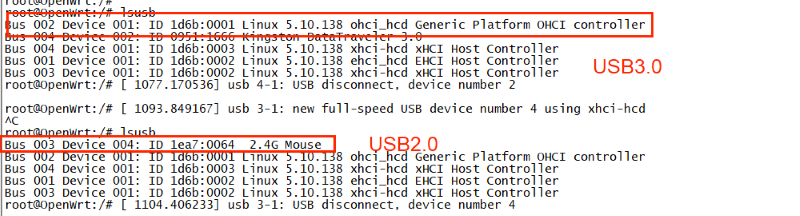
The BPI-RT2 is equipped with a USB 3.0 interface. You can detect both USB 3.0 and USB 2.0 devices when connected。
¶ Image
¶ Web page upgrade
-
First, download the image what you want to upgrade
-
Power on the BPI-RT2 and connect it to the computer using a network cable.
-
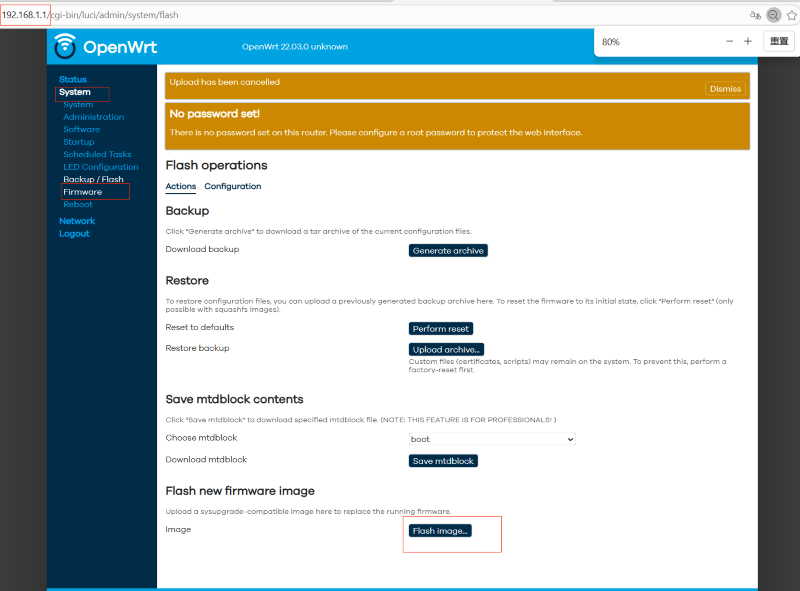
Enter the webpage (default IP is 192.168.1.1,the user is root and does not have a password.)
-
Select “System", then select "System"→"Firmware".
-
Then, Click Flash image.
-
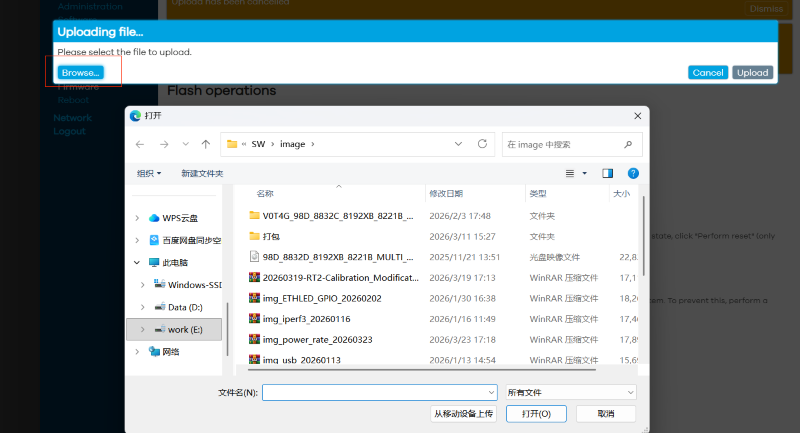
Select the image you want to upgrade, and then click "Upload".
-
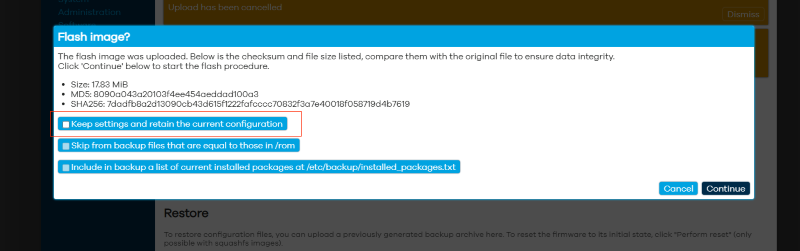
Uncheck "Keep settings and retain the current configuration".Select "Continue.
-
Wait a few minutes, after the upgrade is completed, it will automatically restart and the web page will automatically refresh.
¶ TFTP
-
Connect the serial port tool. Upon power-up, hold down the ESC key continuously to enter boot mode.

-
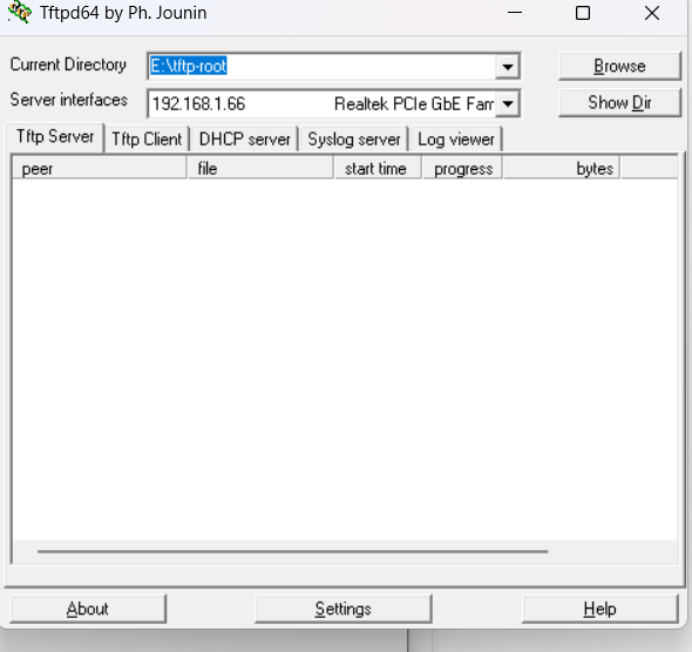
Download the TFTPD64 tool
-
Connect the computer to the board using an Ethernet cable, then check the board’s IP address in boot mode. Execute
printenv.

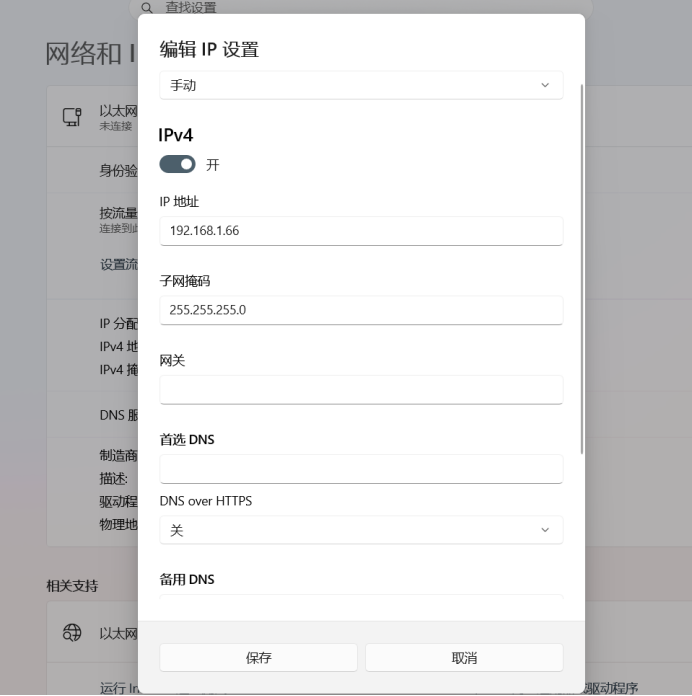
Then modify the computer’s IP address (the last host number of the computer’s IP must be 66) Change it to be within the same subnet Modify it as follows:
-
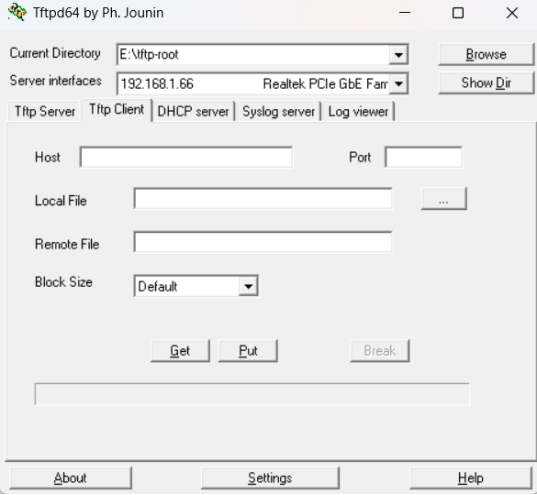
Launch TFTPD64 and place the file to be transferred into E:\tftp-root. If this folder does not exist, create a new folder named tftp-root on the E drive. Under Server interfaces, select 192.168.1.66. Host: Enter 192.168.1.6 (the board’s IP address). Local File: Click the adjacent … or Browse button. In the pop-up window, navigate to and enter the E:\tftp-root folder. Select the file to be transferred and click ‘Open’. Leave the remaining settings unchanged.
-
Execute the following command at the serial port:tftpboot 0x82000000 ubi_device_img.ubi (The filename 98D_ubi_device.ubi must match the selected file in Local File exactly) Upon observing the prompt ‘Loading…’ or ‘TFTP from server…’ appear in the serial port, immediately click the Put button within Tftpd64 using the mouse.
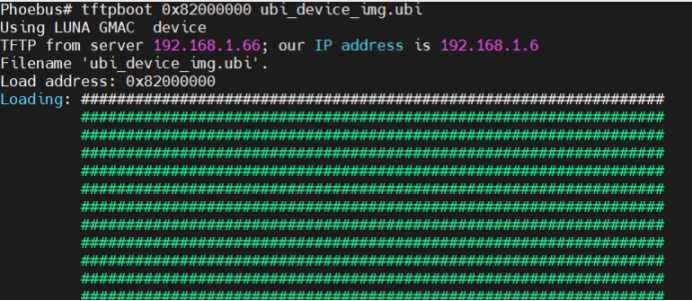

Board serial input: run updev
-
Upload img.tar again. The procedure is similar to the above.
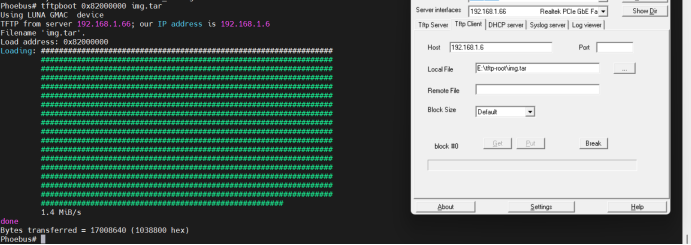
Board serial input: run upt Finally, simply restart.
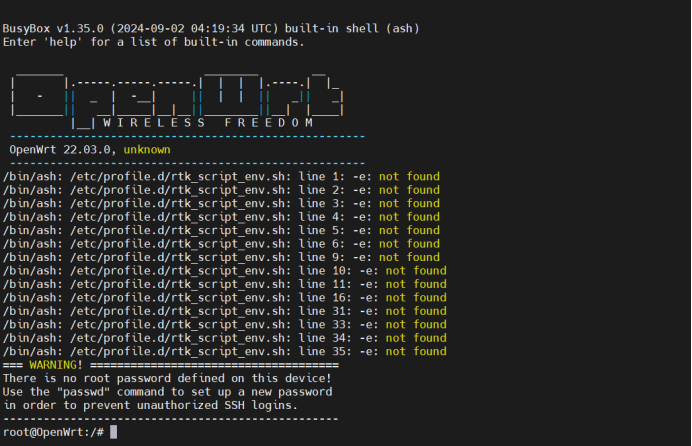
¶ dual backup
¶ Dual-Backup Partition Structure

¶ Variable Meaning
sw_tryactive=0: Attempts to boot system 0 (ubi_k0 + ubi_r0)
sw_tryactive=1: Attempts to boot system 1 (ubi_k1 + ubi_r1)
sw_tryactive=2: Uses the default system for this boot (determined by sw_commit)
sw_commit=0: Default system is system 0
sw_commit=1: Default system is system 1
¶ Start-up procedure
UBoot reads sw_tryactive:
If sw_tryactive=0 or 1: Attempts to load the corresponding system
If boot succeeds, UBoot automatically sets sw_tryactive to 2, booting the default system next time
If boot fails (e.g. kernel crash, mount failure), executes 4.2 fault switching
If sw_tryactive=2: Directly reads sw_commit and perform manual switching
¶ Dual backup manual switchover
Execute in U-Boot mode
setenv sw_tryactive 0
saveenv
Boot
You can see switching to system 0 (root=31:7)

Execute in U-Boot mode:
setenv sw_tryactive 1
saveenv
BootYou will observe the system switching to System 1 (root=31:9)

View current settings
printenv sw_tryactive
printenv sw_commit¶ Open WRT
¶ WiFi
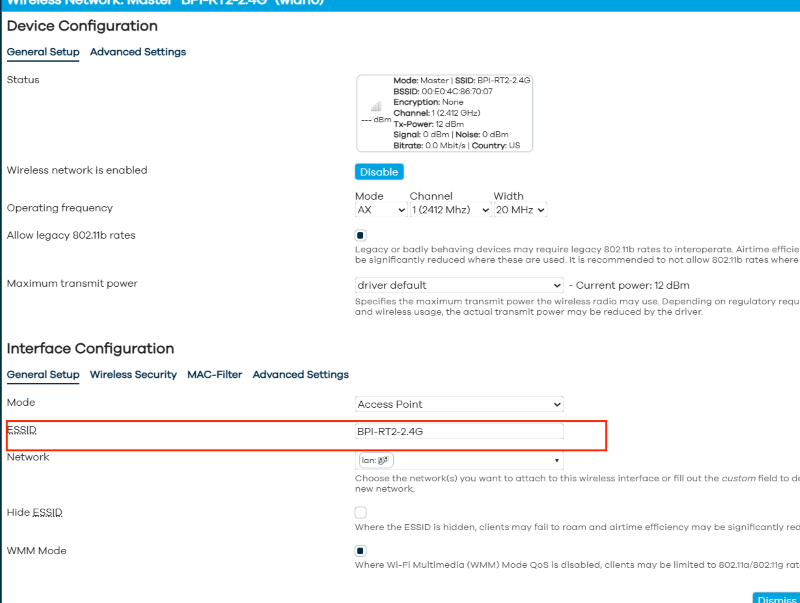
You can check the WiFi startup status in the Network’s wireless section. Among them, BPI-RT2-2.4G and BPI-RT2-5G are the WiFi of BPI-RT2. You can also make the configuration in the "Edit" section.
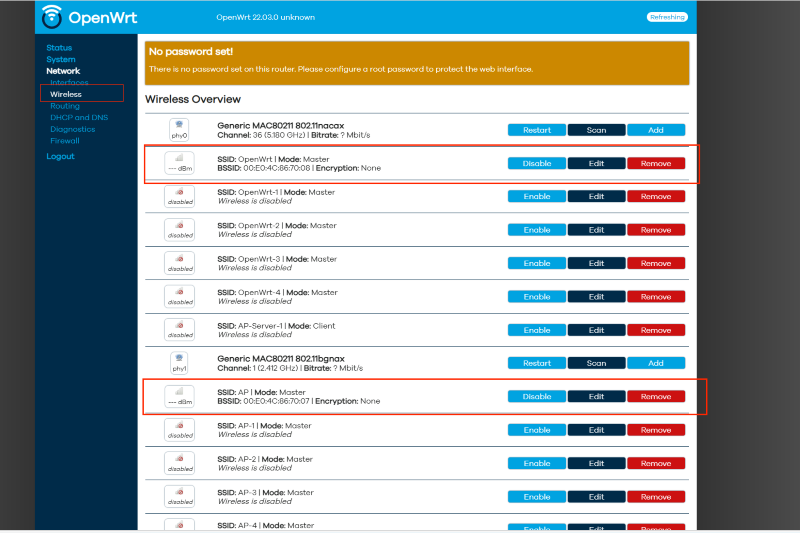
You can change the router’s ESSID
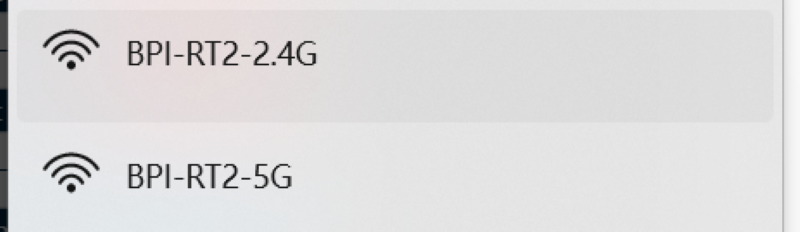
After the modification, you will see
¶ GPIO Define
¶ 5 Pin GPIO define
| BPI-RT2 5 PIN Header GPIO define of BPI-RT2 | |||
|---|---|---|---|
BPI-RT2-CON6 |
PIN |
PIN |
BPI-RT2-CON5 |
GPIO28 |
1 |
2 |
GPIO36 |
VDD33 |
3 |
4 |
GND |
GPIO25 |
5 |
||
¶ 9 Pin GPIO define
| BPI-RT2 5 PIN Header GPIO define of BPI-RT2 | |||
|---|---|---|---|
BPI-RT2-CON6 |
PIN |
PIN |
BPI-R4-CON6 |
I2C0_SCL |
1 |
2 |
GPIO30 |
I2C0_SDA |
3 |
4 |
GPIO5 |
GND |
5 |
6 |
GPIO3 |
VDD33 |
7 |
8 |
GPIO2 |
9 |
10 |
GPIO37 |
|